


How to Check AirPods Pro Serial Number

How to Check AirPods Pro Serial Number
The serial number of your AirPods Pro helps verify authenticity, check warranty status, and identify the exact model you own.
Apple provides multiple ways to find the serial number, whether through your iPhone, the AirPods case, or the original packaging.
In this guide, we’ll explain simple methods to check your AirPods Pro serial number quickly.
Check Serial Number Using Your iPhone
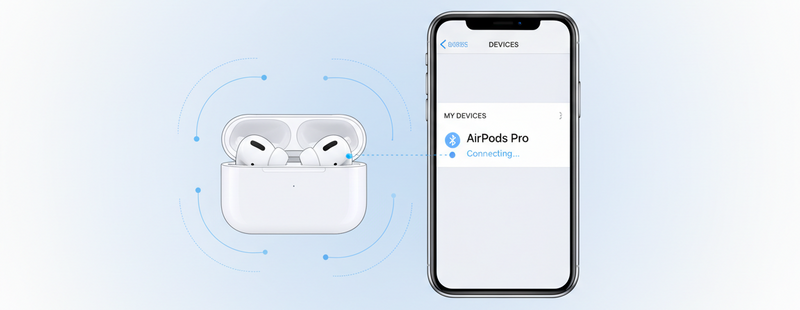
If your AirPods Pro are already connected to your iPhone, this is the easiest method.
Follow these steps:
- Open Settings on your iPhone
- Tap Bluetooth
- Find your AirPods Pro in the list
- Tap the (i) information icon next to them
- Scroll down to view the serial number
This method is useful because it shows the serial number instantly without needing the charging case.

Check Serial Number Inside the Charging Case
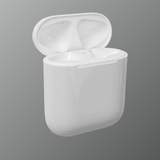
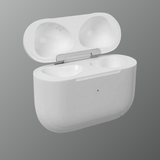
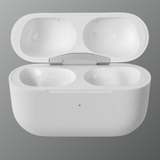
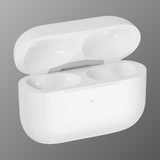
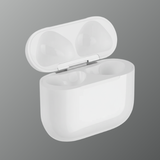
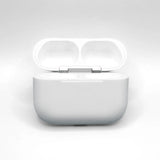
Apple also prints the serial number inside the AirPods Pro charging case lid.
Steps to check:
- Open the AirPods Pro charging case
- Look inside the lid area
- The serial number will be printed in small text
This number should match the serial number shown in your iPhone settings.

Check Serial Number on the Original Packaging
If you still have the original box, the serial number is also printed there.
You can find it:
- On the barcode label on the side of the box
- Along with the model number and product information
This method is helpful when the AirPods are not currently connected to any device.
Check Serial Number in Apple ID Devices List
Another way to verify your AirPods Pro serial number is through your Apple ID.
Steps:
- Go to Settings on your iPhone
- Tap your Apple ID profile at the top
- Scroll down to see your connected devices
- Select AirPods Pro
- The serial number will appear in device information
Find your airpods serial number

Why the AirPods Pro Serial Number Is Important
Your AirPods Pro serial number helps with several important things:
- Verifying if the AirPods are genuine Apple products
- Checking Apple warranty coverage
- Identifying the exact AirPods Pro model
- Getting support from Apple
When buying replacement AirPods or accessories, verifying the serial number helps ensure compatibility.
Internal Link
Page: https://swapex.in/blogs/news/buy-airpods-replacement-all-generations
Anchor text: buy airpods replacement guide
What to Do If the Serial Number Is Missing
Sometimes users cannot find the serial number due to wear or visibility issues.
In such cases:
- Check the serial number via Bluetooth settings
- Look at the original product packaging
- Check the Apple ID device list
If the serial number still cannot be found, Apple support can help verify the product using device pairing information.
Conclusion
Checking the AirPods Pro serial number is quick and simple when you know where to look. The easiest way is through your iPhone settings, but you can also find it inside the charging case, on the packaging, or in your Apple ID device list.
Keeping a record of your serial number helps with warranty checks, authenticity verification, and product support.
Looking for genuine Apple AirPods replacements or accessories?
Explore trusted Apple products at Swapex.
FAQs
Where can I find my AirPods Pro serial number?
You can find it in iPhone Bluetooth settings, inside the charging case lid, on the packaging, or in your Apple ID device list.
Do both AirPods have separate serial numbers?
Yes, each AirPod may have its own serial number, but the case also has a main serial number.
Can I check AirPods warranty using the serial number?
Yes, you can check warranty coverage using Apple’s official coverage check page.
What if my AirPods serial number is not visible?
You can still view it in the Bluetooth settings on your iPhone if the AirPods are connected.
Is the serial number needed for replacement AirPods?
Yes, it helps identify the correct AirPods model and compatibility.