



How to Connect a New AirPod to Your Existing Pair

How to Connect a New AirPod to Your Existing Pair
If you’ve lost or replaced one of your AirPods, you might wonder how to connect the new AirPod with your existing one.
Fortunately, Apple makes it possible to pair a replacement AirPod with your current set. The process is simple and usually takes only a few minutes.
This guide explains the steps required to connect a new AirPod correctly.
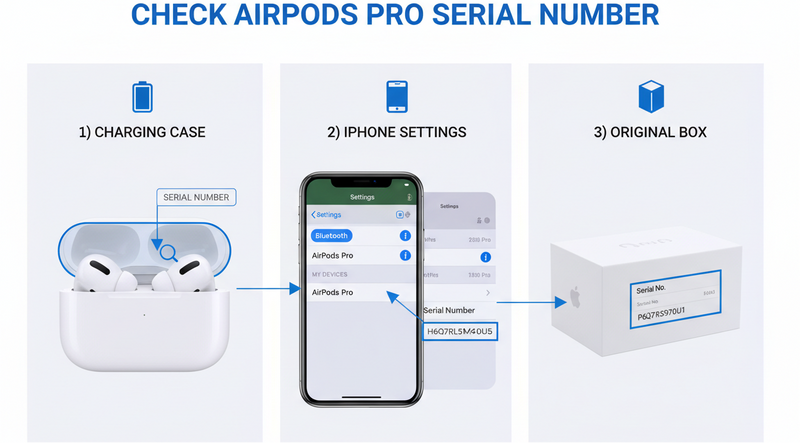
Check If the AirPods Are the Same Generation
Before pairing a new AirPod, it’s important to confirm that both earbuds belong to the same AirPods generation.
For example:
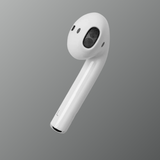
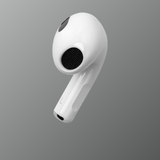
- AirPods 1 must pair with AirPods 1
- AirPods 2 must pair with AirPods 2
- AirPods Pro must pair with AirPods Pro
If the AirPods are from different generations, they may not connect properly.

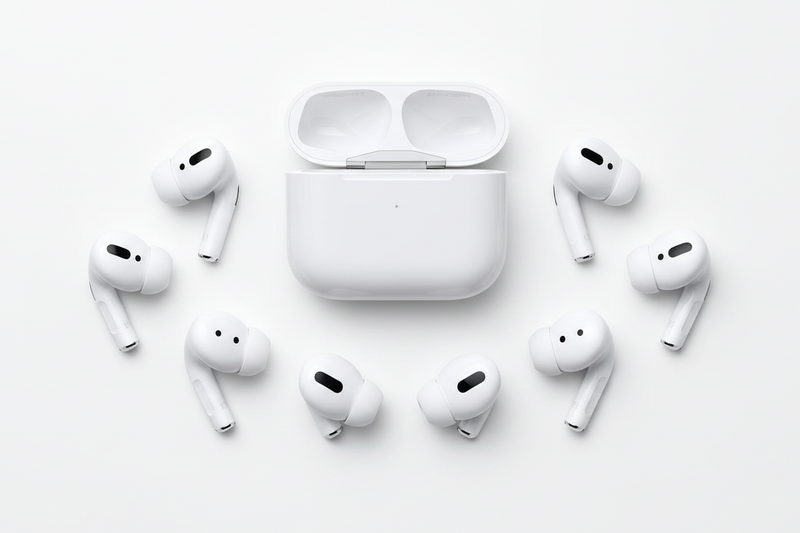
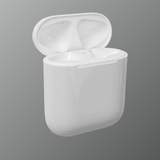
Place Both AirPods in the Charging Case
Insert both the original AirPod and the new AirPod into the charging case.
Close the lid and leave them inside the case for around 20–30 seconds.
This helps the system recognize both earbuds before pairing them together.
Reset the AirPods
Resetting the AirPods is an important step when pairing a new earbud.
Follow these steps:
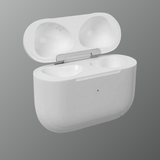
- Open the AirPods case lid
- Press and hold the setup button on the back of the case
- Keep holding it for about 15 seconds
- Wait until the light flashes amber and then white
This indicates the AirPods are ready to reconnect.

Connect the AirPods to Your iPhone
After resetting the AirPods:
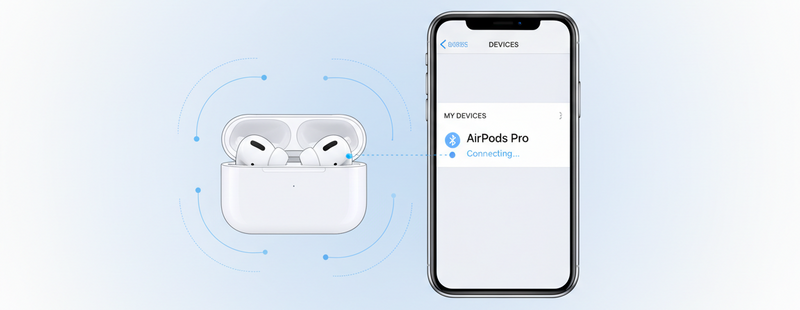
- Keep the AirPods case open near your iPhone
- Wait for the AirPods connection animation to appear
- Tap Connect on the iPhone screen
- Follow the setup instructions
Once completed, both AirPods should work together as a pair.
Test the AirPods
After pairing the new AirPod, test them to ensure they are working properly.
Check the following:
- Both earbuds produce sound
- The battery status shows both AirPods
- Touch or tap controls respond normally
If one AirPod does not work, try repeating the reset process again.
Why replacement airpods are not connecting

Common Issues When Connecting a New AirPod
Sometimes users experience issues when pairing a replacement AirPod.
Common reasons include:
- Different AirPods models
- AirPods not reset correctly
- Charging case battery too low
- Dirt or debris in charging contacts
Cleaning the charging case and resetting the AirPods usually resolves most pairing problems.
Conclusion
Connecting a new AirPod to your existing pair is simple when you follow the correct steps. Ensuring the AirPods are the same generation and resetting them before pairing usually resolves most connection issues.
With the right process, you can continue using your AirPods without needing to replace the entire set.
FAQs
Can I connect a replacement AirPod to my existing one?
Yes, as long as both AirPods belong to the same generation.
Why is my replacement AirPod not pairing?
This usually happens if the AirPods are not reset or if the replacement AirPod is from a different generation.
Do I need to reset AirPods before pairing a new one?
Yes, resetting helps the device recognize the replacement AirPod.
Can different AirPods generations work together?
No, AirPods from different generations cannot function as a pair.
How long does it take to pair a new AirPod?
The process usually takes less than a minute after resetting the AirPods.